Previous: What Is InSITE VM?
Step 1: Create or Select Ambit
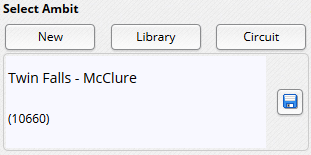
Log into inSITE VM and open the Veg Management widget. Click the Create New button to draw or upload ambit boundaries for your detections analytics or click the From Library button to select an existing ambit. Click the Create Ambit from Circuit button to select all or part of a circuit as your ambit.
Step 2: Select Detection Parameters
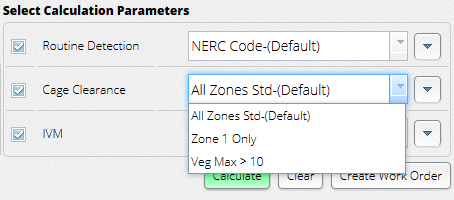
Uncheck the boxes for calculations you want to exclude from your results. Select a set of parameters from the Detection Parameters dropdown menu for each type of data you want to calculate.
Step 3: Calculate and Review Detections
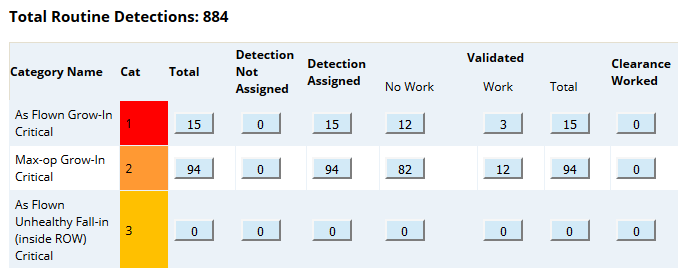
Click Calculate Ambit to run detection analytics. Review your results in the table. Click the count for any detection category to review individual trees.
Step 4: Create and Assign Work Order
When you’re satisfied with your results, click Create Work Order. Fill out the required information, choose an inspector, and click Assign to send the work order to the inspector’s mobile device.

Step 5: Download Work Order
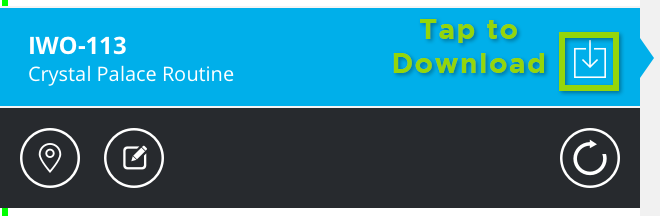
Log into inSITE Mobile VM to receive the assignment on a mobile device and download the work order for offline use.
Step 6: Perform Field Inspection
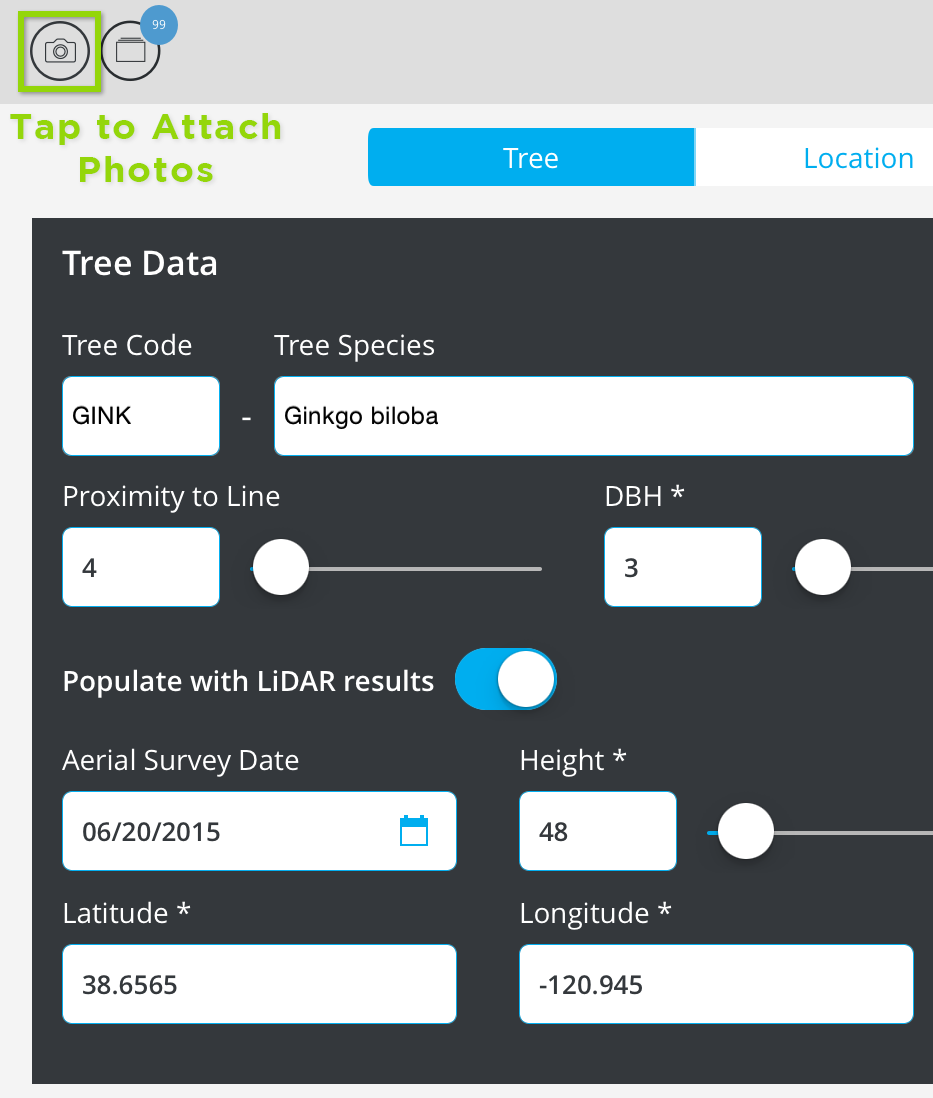
Review trees in the field with inSITE Mobile VM by navigating in the map and tapping detections to open their records. Edit detection records, attach relevant photos, and sync the results with the inSITE database.
Step 7: Review Inspection and Export for Database
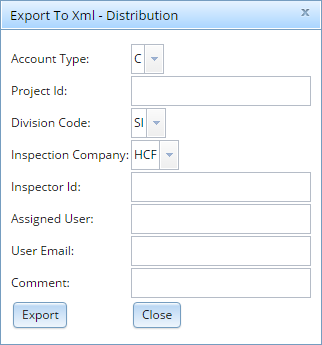
Log into inSITE VM and open the Work Orders tab. Select the completed work order to review field inspection results. Click Convert and fill out the required information to export an XML file for your vegetation management database.
0 Comments