Previous: Defining Analytics Parameters
Once you’ve identified the outstanding vegetation risk you want to manage, you can create a work order to assign inspection or maintenance tasks to a mobile worker. You can review and track existing work orders from assignment through completion.
Creating a Work Order
Open the Veg Management widget  and calculate detections in an ambit for distribution or transmission. If you use the New or Circuit buttons to create an ambit, you must save the ambit before you create a work order. For more information on calculating detections, see Calculating Detections.
Click the Create Work Order button.
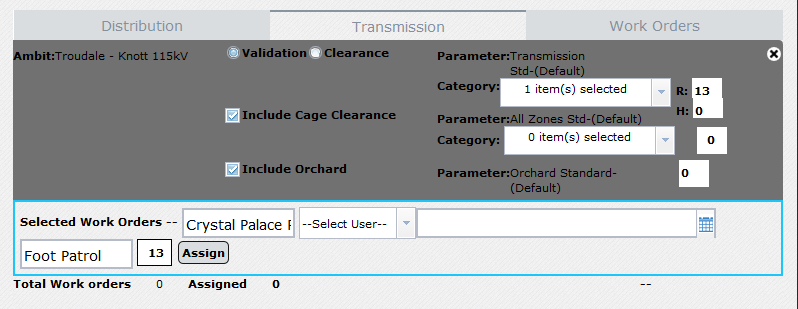
In the Work Order window, select Validation to create a field validation work order or Clearance to create a tree trim or clearance work order. Check or uncheck the Include Cage Clearance and Include Orchard boxes to determine whether your work order will include cage clearance and orchard detections or only routine detections. If you want to narrow your results by detection category, click the Category menus for routine detections or cage clearance and check or uncheck the boxes for the detection categories you want to include. In the routine detections categories, the unit count boxes will display the number of routine detections (R:) and hybrid detections (H:) to be included in your work order. The cage clearance unit count box will display the number of towers to be included in your work order.
Enter a name for your new work order in the WO Name box. Enter at least one tag in the Tags box. Separate tags with commas. Select the inSITE Mobile VM app user who will receive the current assignment from the Select User dropdown menu. Enter a due date in the Due Date box or click the calendar icon to select a due date from the calendar. Click Assign to save the work order and assign it to the mobile user you selected earlier. Or, leave the Select User menu blank and click Save to save the work order for later assignment.
Tracking Work Orders
Work order status updates in real time as mobile users take action on the assignment. The status updates when a user saves the work order (Saved), when a user assigns receives the work order to a crew (Assigned), when the assigned user opens and syncs data for the work order (In-Progress), and when the assigned user syncs data for all structures included in the work order (Complete).
Open the Veg Management widget and click on the Work Orders tab. Your first 10 current work orders will display in the work orders table. Click any column header in the work order table to sort the table. Click the First, Previous, Next, or Last buttons to navigate through your current work orders.
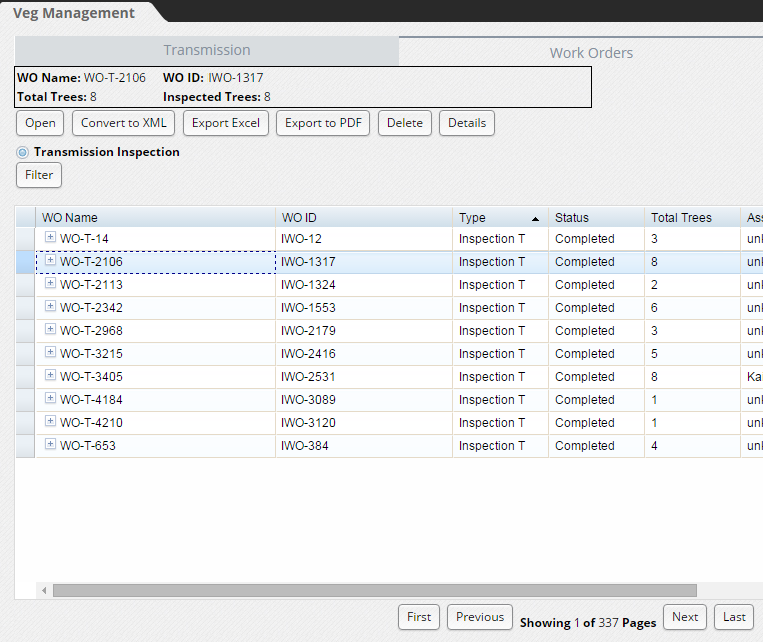
Click the Filter button to filter the work orders displayed in the table. Choose an option from the Select Filter Column drop-down menu to determine how you'll filter the results. Choose an option from the operator drop-down menu to determine whether you'll filter for results equal to, not equal to, or like your search term. Select a search term from the drop-down menu or type a value in the search term box. Click Apply Filter to filter the work orders table. Click Filter then click Clear Filter to remove your current filter and display all work order results.

Click any work order in the table to zoom to its location in the map and highlight its ambit boundaries. Click Open to review details for the highlighted work order. Click Convert to XML to export a vegetation management database record for the highlighted work order (see Exporting to a Database). Click Export Excel to export a table of inspection data for the trees in the selected work order. Click Export to PDF to export a basic map of the selected work order. Click Delete to delete the highlighted work order. The delete option is available only for work orders in the Saved status or Assigned status. Click Details to open a table of the detections included in the work order.
Next: Exporting To A Database
0 Comments