Previous: Creating And Tracking Work Orders
inSITE users who must sync their vegetation data with another database system can export records through an interchange format like XML or JSON. inSITE generates database records from work orders. For more information about creating work orders, see Creating and Tracking Work Orders.
Open the Veg Management widget and click the Work Orders tab. Click any work order in the table to highlight it. Click the Convert to XML or Convert to JSON button to generate a database record from the highlighted work order.
In the Export window, select an option from each dropdown menu and enter text in each box to fill out the attributes required for your organization’s vegetation database. Your Export window will be configured according to your organization’s database needs, so the available dropdown menus and input boxes will vary by customer. Click Export to save an XML or JSON file compatible with your database.
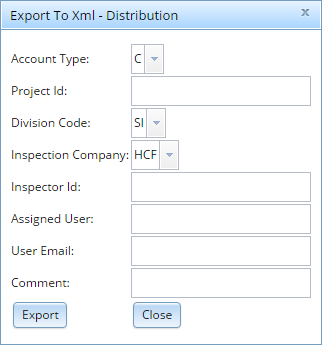
inSITE does not validate the values you enter in the export window. If your database will not validate records produced by inSITE, please contact your organization’s database administrator for help with entering valid values in the export window.
0 Comments