If you're experiencing recurring problems with an inSITE Mobile app, you may need to uninstall the app then reinstall from the App Store.
Caution: Possible Data Loss
Uninstalling the app will delete the local database stored on your iPad, which means you will lose any data you have not synced with the inSITE database. Sync any in progress work with the inSITE database before proceeding to uninstall the app.
If you are experiencing errors with syncing work, please contact inSITE support at qisupport@quantumspatial.com or submit a request through the web form immediately.
Uninstalling an App
Tap your iPad home button to display the iPad home screen. Find the icon for the inSITE Mobile app you want to uninstall.
Press and hold on the inSITE Mobile app icon until until the icon begins to shake and an X appears in the upper left corner of the icon.

Tap the X in the upper left corner of the inSITE Mobile app icon. In the confirmation dialog, tap Delete to uninstall the app.

Reinstalling the App
If you're viewing this help document from your iPad, tap one of the links below to open the appropriate inSITE Mobile app in the App Store then tap the download button.
inSITE Mobile VM (Vegetation Inspections)
inSITE Mobile FM (Structure and Boardwalk Inspections)
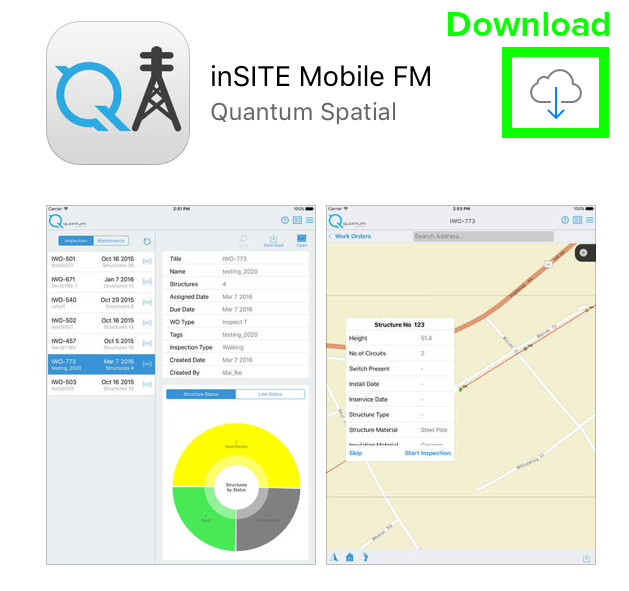
Alternatively, you can open the App Store and search for the appropriate app. Tap the App Store icon on the iPad home screen. In the App Store, tap the search bar in the upper right corner. Search for inSITE Mobile Application VM or inSITE Mobile FM, depending on which app you need to install.

0 Comments