inSITE Facilities generates configurable reports from your asset inspection and maintenance data with templates customized for your compliance, budgeting, and progress tracking needs. To implement a new report template that’s not currently available in your instance of inSITE Facilities, please contact your inSITE administrator.
- Open the Facility Inspection widget
- Click on the Reports tab
- Click on a report template to highlight it
- Click Next to configure the report.

- inSITE Facilities reports return results with the boundaries of an ambit or ambits and within a specified date range.
- Click the Select Ambit button to open the ambit library

- Click one or more ambits to select them
- Click Confirm to set the selected ambit or ambits as the boundary for your report.
- Alternatively, you can click the Entire Area check box to run your report on your available assets in inSITE.
- Type start and end dates for your report in Inspection Date Range boxes
- Click the dropdown menus to select a date from a calendar.
- Alternatively, you can check the Entire Range box to run your report on all available historic data within your selected ambit.

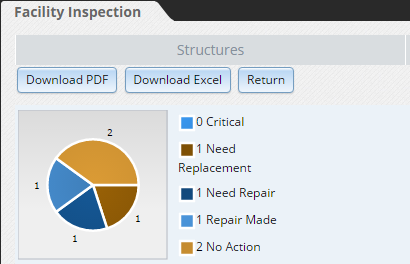
- Click Generate to view your report. Some reports return tables and some return graphs.
- Click Download PDF or Generate PDF to download a printable version of your current report.
- Click Download Excel to download a spreadsheet version of your report.
- If you have issue with downloading you may need to change your pop-up blocker to allow pop-ups for InSITE. Please review Enabling Pop-Ups for InSITE
- Click Return to go back to the report configuration menu and change your ambit or date range.
- In the report configuration menu, click Return to go back to the report templates list and start over with a different report template.

0 Comments