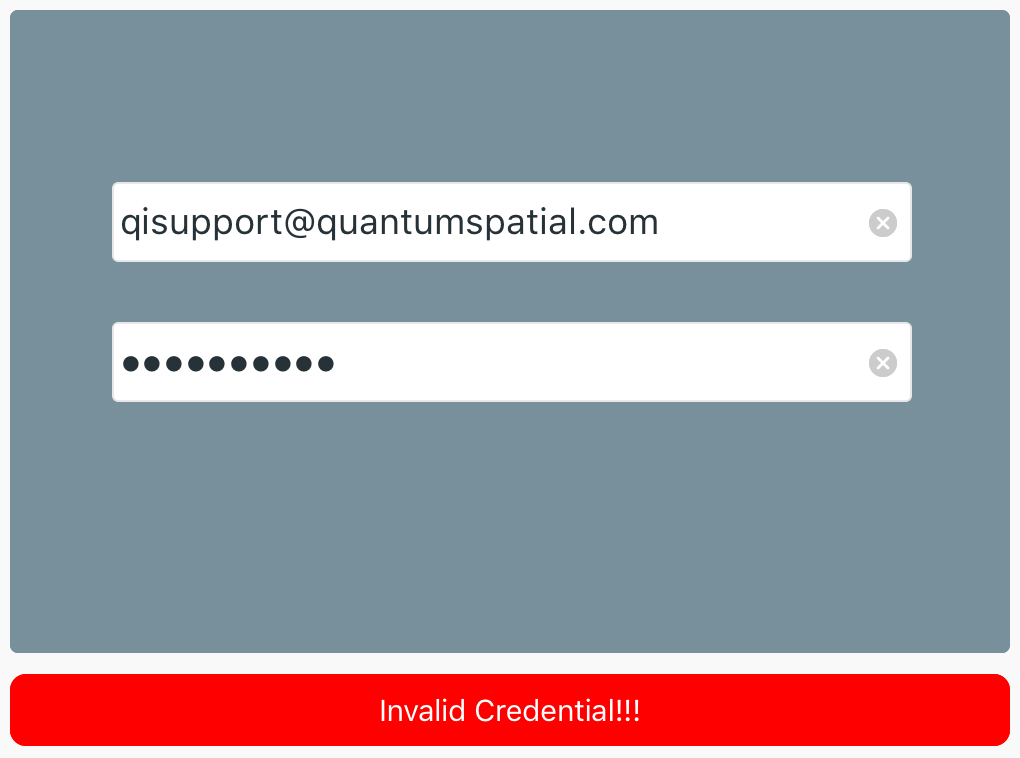
If you receive an Invalid Credentials message while logging into the inSITE Mobile FM app, use the following steps to resolve the issue.
1. Verify AppURL Settings
Open your iPad's Settings menu. Scroll down in the list on the left to find inSITE Mobile FM. Tap inSITE Mobile FM to open the inSITE Mobile FM Settings menu.
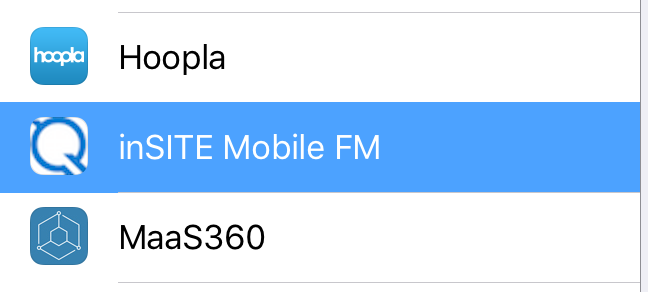
Verify that the AppURL is pointing to the correct environment. For your organization's production environment, the correct AppURL is
http://insite.quantumspatial.com
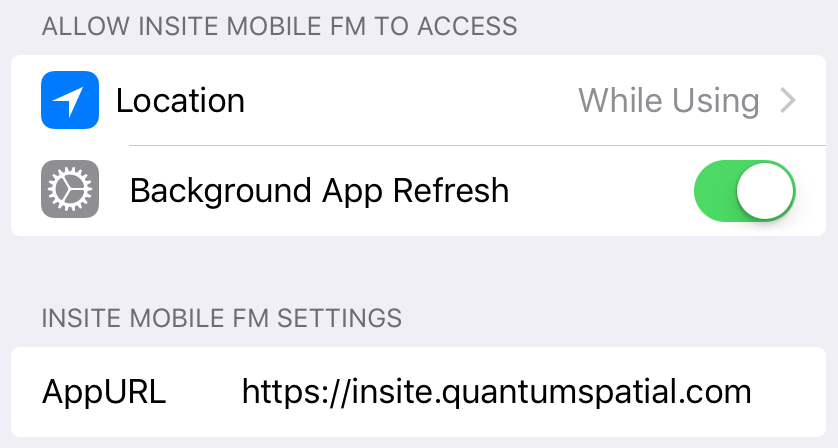
If the app is showing a different AppURL, tap the app URL to edit the text and type the correct AppURL.
2. Force Quit the inSITE Mobile FM App
Double-click the home button to see recently used apps. Swipe left or right to find the QSIFacility app. Swipe up on the inSITE Mobile FM app to force quit the app.
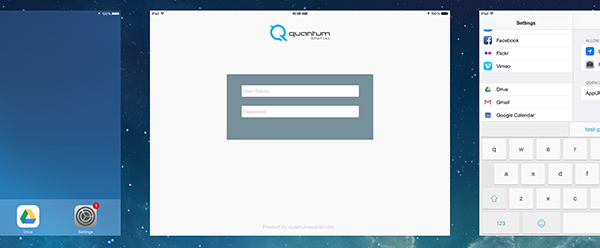
Open the QSIFacility app again and re-enter your credentials.
3. Restart Your iPad
Press and hold the iPad's power button. Swipe right on the slide to power off button to shut down the iPad. Press and hold the iPad's power button to turn the iPad back on.
4. Reinstall the inSITE Mobile FM App
If steps 1-3 do not resolve the issue, you can uninstall then reinstall the inSITE Mobile FM app.
CAUTION: Uninstalling the inSITE Mobile FM app will delete existing inspection data stored on your iPad. If you collected inspection data in offline mode and did not sync with the inSITE server, proceeding with the following steps will delete the un-synced data.
Press-and-hold the QSI Facility icon until the icon wiggles and an X appears in the corner of the icon.
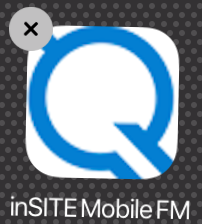
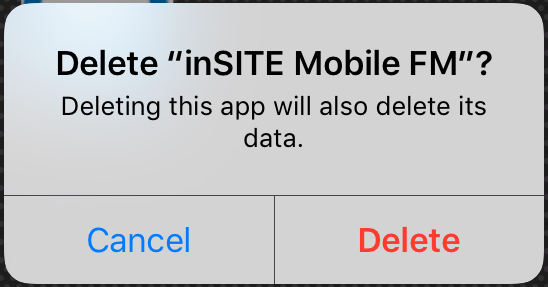
Tap the X then tap Delete on the confirmation prompt to delete the app.
Reinstall the app using your HockeyApp account.
0 Comments